KoolBox Documentation
Activate Your License
Two ways to license a KoolBox installation — a four-click online activation, or a two-file exchange for a network that never reaches the internet.
Understand the grace period first
A new installation gets 3 days of full access with no license, counted from the moment it first started. If you have not installed KoolBox yet, start with Install KoolBox.
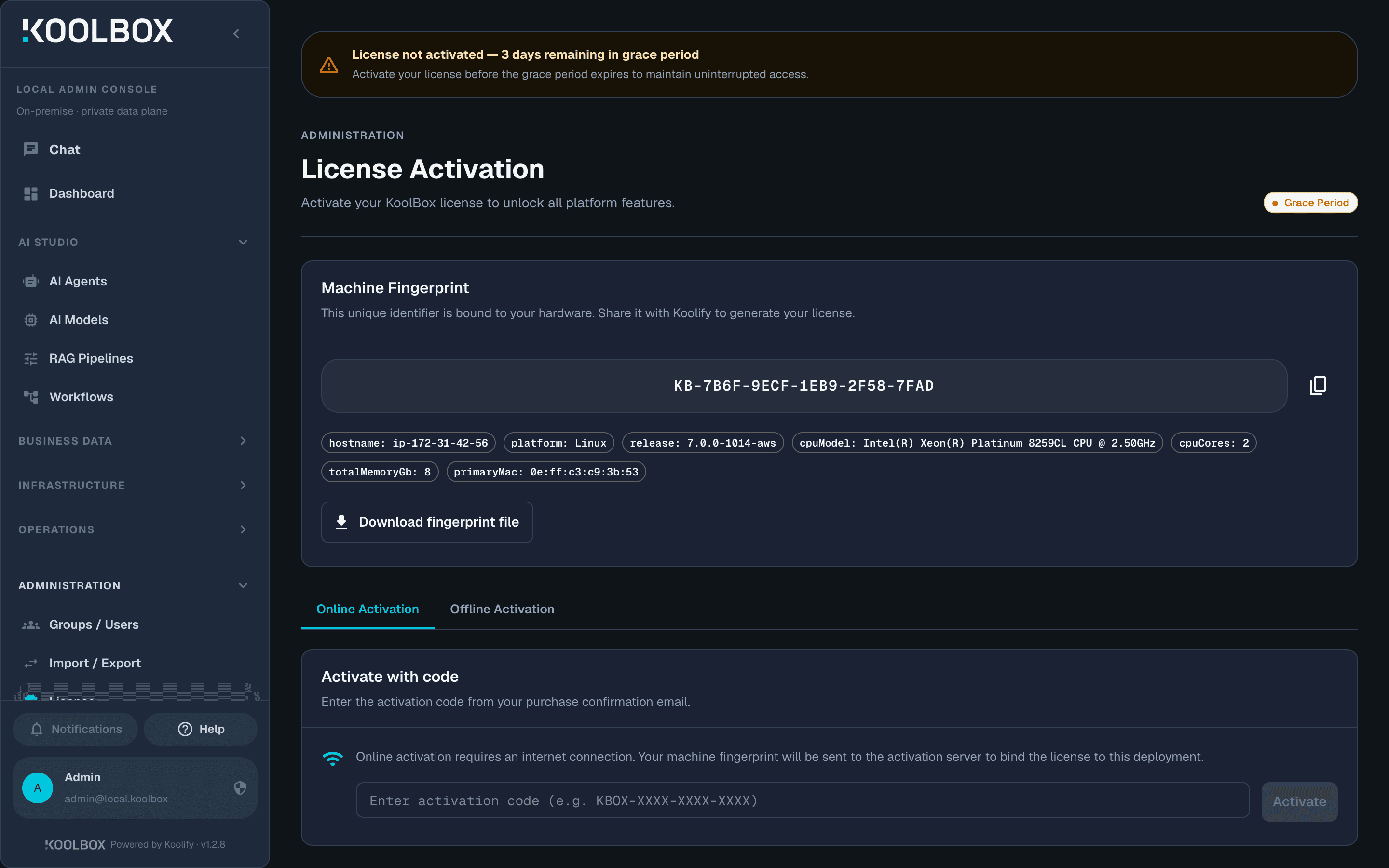
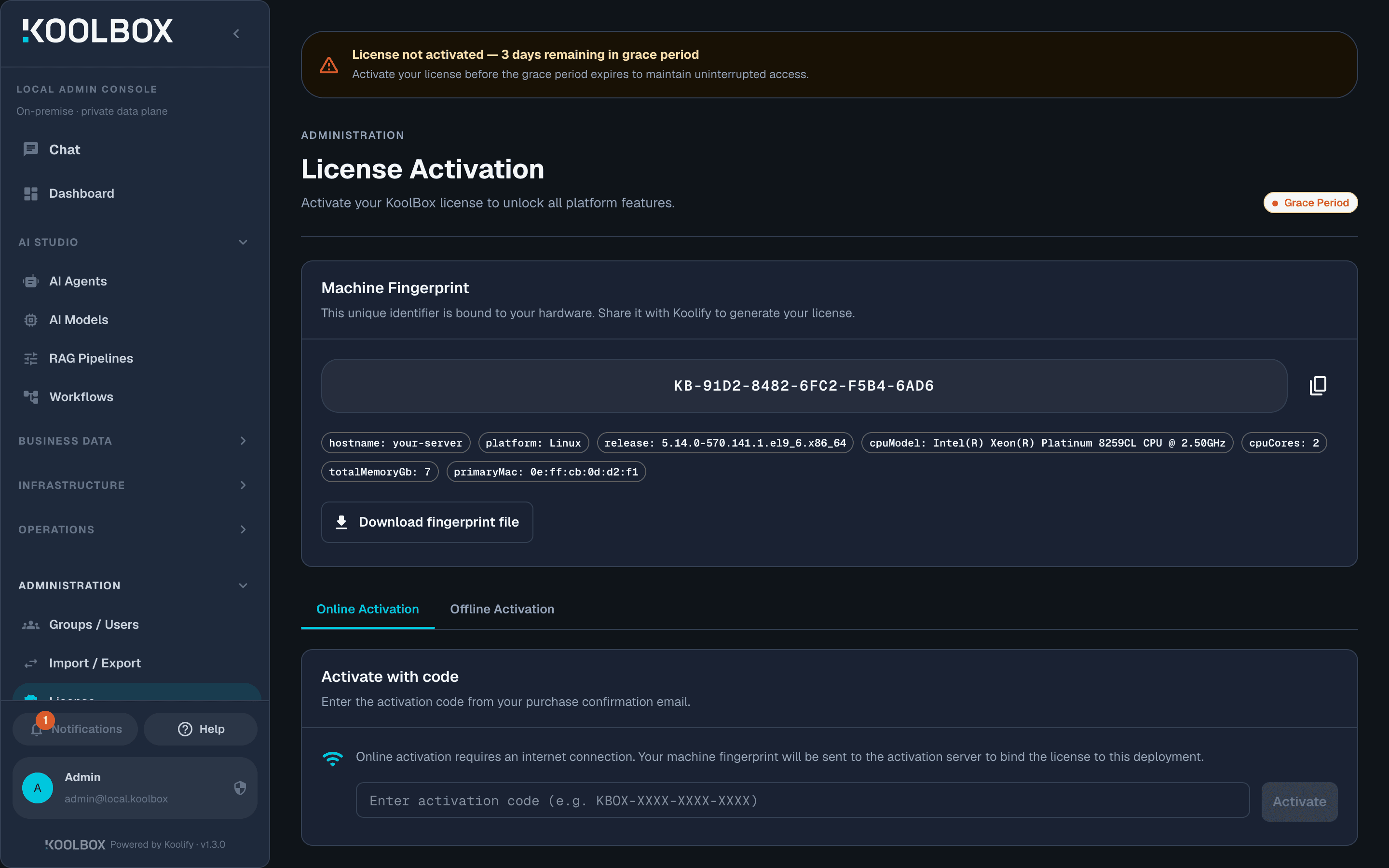
During those 3 days a dark amber banner with an orange warning triangle sits across the top of the content area on every page — checked on all of them — alongside a Grace Period badge at the top right:
License not activated — 3 days remaining in grace period
Activate your license before the grace period expires to maintain uninterrupted access.
[Activate now]
One feature is held back during the grace period: the Kai assistant is unavailable until a license is active, and it really is absent rather than merely inert — there is no sidebar entry and no mention of it anywhere in the interface.
Go to Administration → License in the sidebar to activate. There are two ways to do it: online if your server can reach the internet, or offline if it cannot.
Online activation (the normal way)
Use this if your server can reach the internet.
- In the sidebar, open Administration → License.
- Select the Online Activation tab.
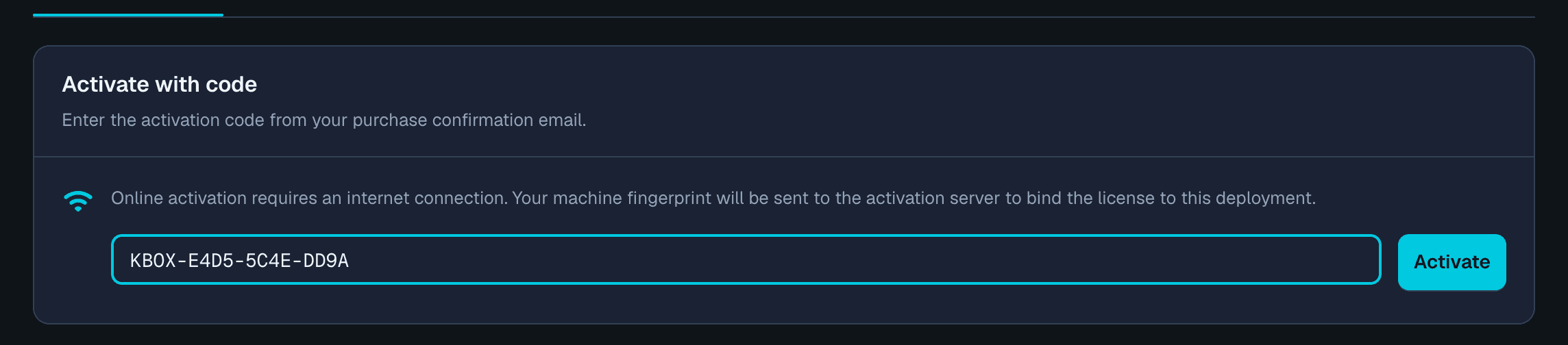
- Paste the activation code from your purchase confirmation email into the box. Codes look like
KBOX-XXXX-XXXX-XXXX. - Click Activate.
Your machine fingerprint is sent to Koolify's activation service, which returns a license bound to this specific installation.
Licensed to <your organization>. Expires <date>.; and two cards appearing side by side.The License Details card lists, in this order:
Scroll to see all columns →
| Row | What it holds |
|---|---|
Customer | The organization the license was issued to |
Customer ID | Koolify's own account identifier. Quote it when you contact support |
Activation type | online here; a file exchange reports itself differently |
Deployment mode | The mode the license permits |
Max nodes | How many private AI nodes you may register — 10 on the Enterprise key used for this capture |
Support level | The support tier the license carries, for example enterprise |
Activated | When this installation was licensed |
Expires | When it stops being valid, and when you must renew by |
Beside it sits an Enabled Modules card, with one pill per module your plan includes — private AI chat, RAG, document analysis, OCR, workflow automation and so on. The set differs from plan to plan, so treat this card as the authoritative statement of what your own key unlocks.
Every value on both cards comes from the key Koolify issued you, which is the quickest way to confirm you were given what you bought.
License not activated — 3 days remaining in grace period banner can still be sitting at the top of the page while the badge already reads Active and the success message is on screen. That is a display lag, not a failed activation. Reload the page and it is gone.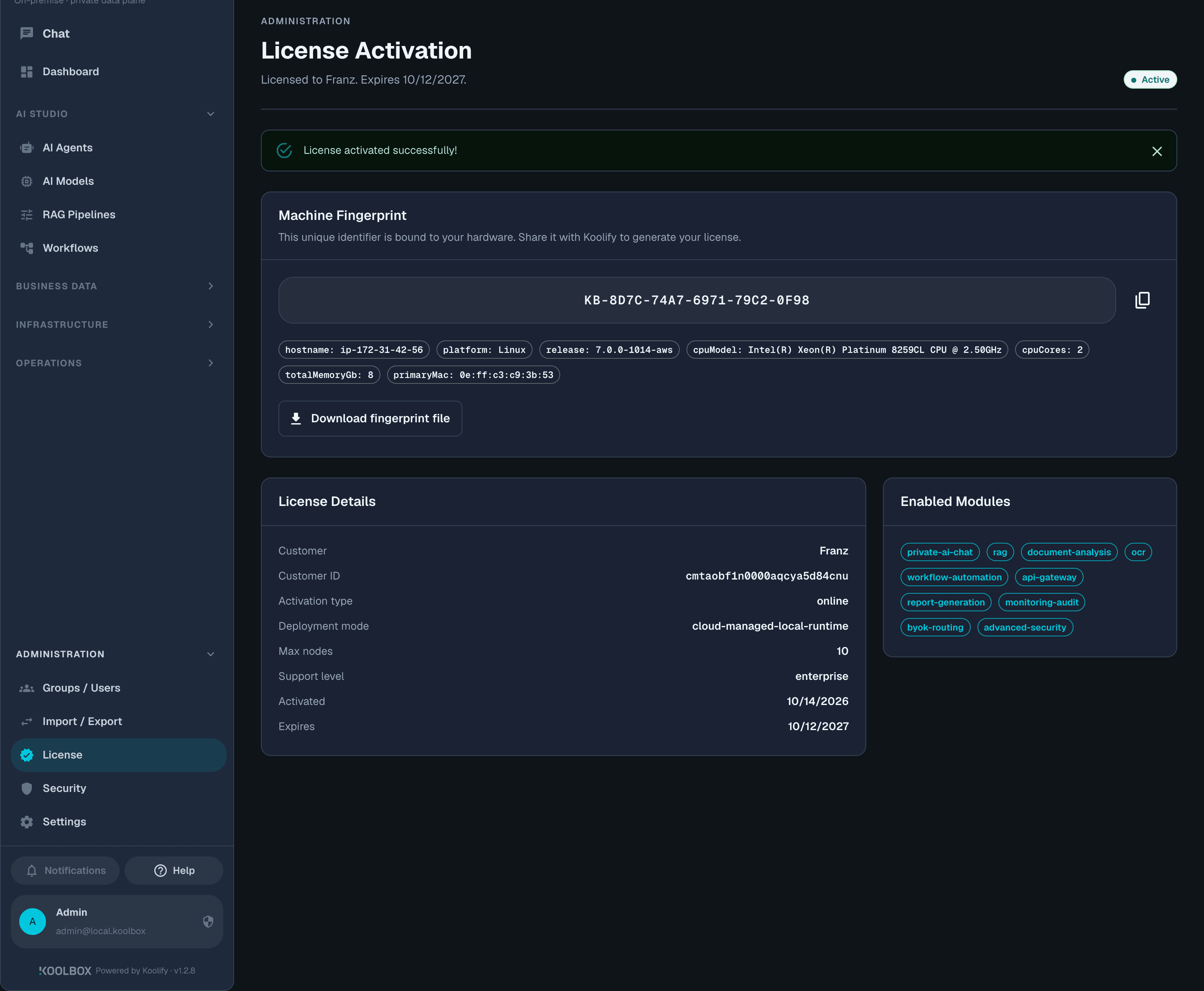
If it fails, the message tells you which of these it was:
Scroll to see all columns →
| Message | What to do |
|---|---|
| “Invalid activation code…” | Check for typos or missing characters; the code is case-sensitive. |
| “Could not reach the license server…” | Your server has no outbound internet access. Use offline activation. |
| “Code already activated on another machine” | The code is already in use. Contact Koolify — do not keep retrying. |
| “License server returned an unexpected response…” | A temporary problem at the activation service. Wait and retry. |
Offline activation (for isolated networks)
Use this when your server has no internet access. It is a simple two-file exchange, and once done, the installation never contacts any server again.
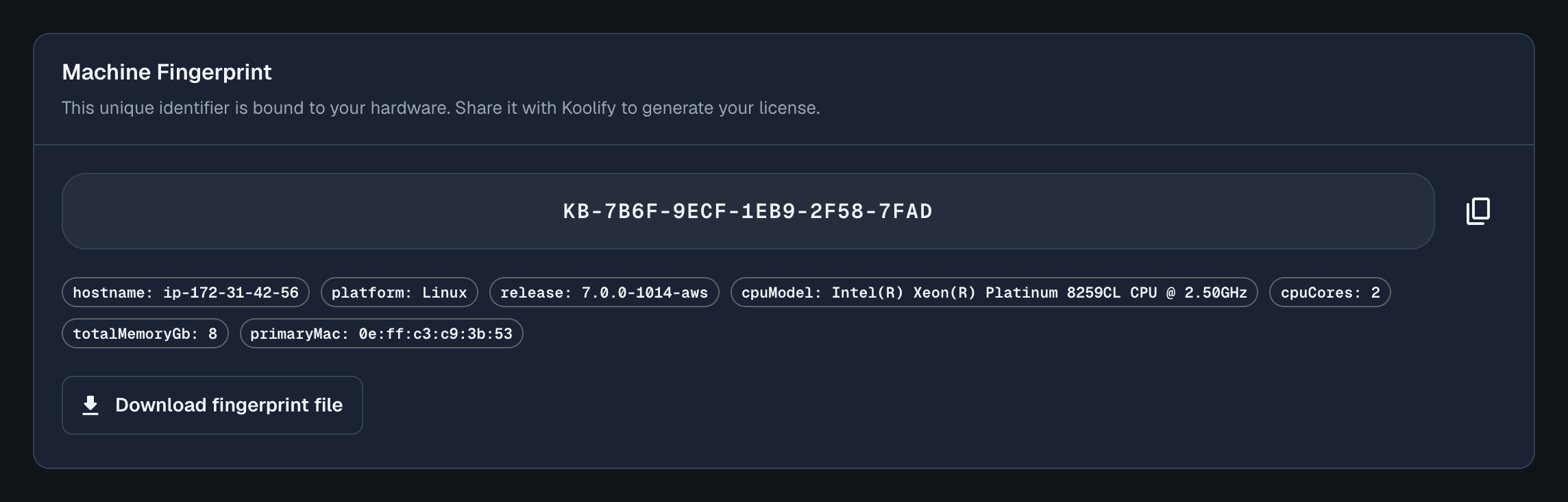
Download your machine fingerprint. On the Administration → License page, the Machine Fingerprint card is at the top. Click Download fingerprint file. Your browser saves a small file named like
koolbox-fingerprint-1791953435543.json.Send that file to Koolify through your approved channel. It is a small text file. You can open it and read it first; it contains only your installation's own identifier and basic host characteristics.
Koolify sends back a signed license file (
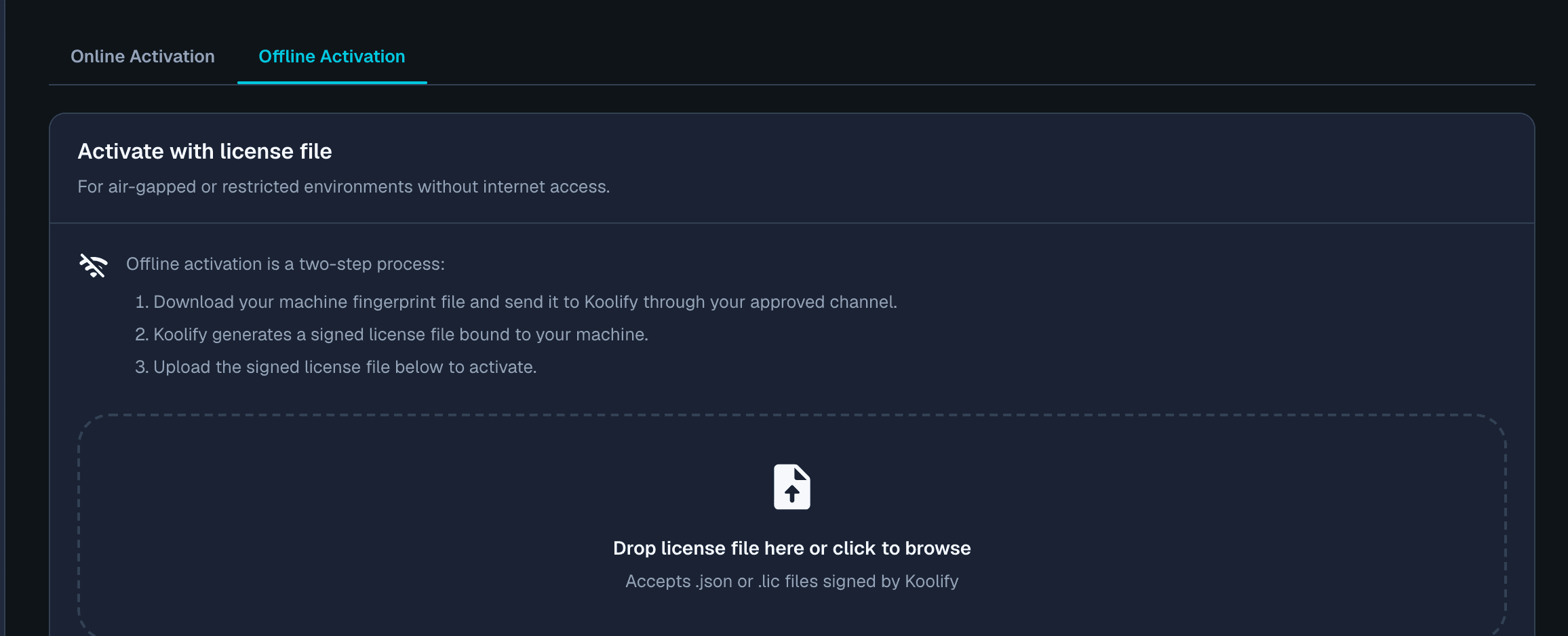
.lic), generated specifically for this machine.Upload it. On the same page, choose the Offline Activation tab and either drag the file onto the dashed box or click it to browse. The box reads “Drop license file here or click to browse — accepts .json or .lic files signed by Koolify”, and that is exactly what it accepts.
If it fails:
Scroll to see all columns →
| Message | Cause |
|---|---|
| “Invalid license file. Could not decrypt or validate…” | The license was generated for a different machine's fingerprint. Send the fingerprint file again and ask for a replacement. |
| “This license has already expired.” | The dates on the license have passed. Request a current one. |
What the machine fingerprint is
Your license is tied to this installation so it cannot be copied elsewhere. The fingerprint looks like this:
KB-A1B2-C3D4-E5F6-7890-ABCDIt is a one-way cryptographic hash of an identifier created once for this installation, combined with seven host characteristics: hostname, operating system and kernel release, CPU model and core count, memory size, and the first network adapter's address. All seven are listed on screen as small chips, so you can see exactly what goes into it, and they appear in the file you download — which is the whole of it, about half a kilobyte:
{
  "version": "1.0",
  "generatedAt": "2026-10-14T04:50:35.870Z",
  "machineFingerprint": "KB-7B6F-9ECF-1EB9-2F58-7FAD",
  "installId": "70594920-6637-407a-b368-dc034a36d625",
  "components": {
    "hostname": "your-server",
    "platform": "Linux",
    "release": "7.0.0-1014-aws",
    "cpuModel": "Intel(R) Xeon(R) Platinum 8259CL CPU @ 2.50GHz",
    "cpuCores": "2",
    "totalMemoryGb": "8",
    "primaryMac": "0e:ff:c3:c9:3b:53"
  },
  "platform": {
    "product": "KoolBox Private AI Platform",
    "consoleVersion": "1.0.0"
  }
}
No documents, user data, prompts or business information are involved — that is the entire file, and you can read it before you send it. The consoleVersion line describes the file format, not your installed release, so do not be concerned that it reads 1.0.0 on a 1.2.8 server. Because the installation's own identifier is part of the hash, the fingerprint survives routine hardware changes.
Renewal, and what you must do before expiry
This differs between the two license types, and the difference matters.
Online licenses renew themselves
Once a day the console quietly checks its license and, when expiry is within 7 days, requests a renewal and swaps it in. You do not need to do anything as long as your subscription is current and outbound HTTPS is open.
If a renewal cannot be reached, nothing is revoked — a network problem never locks you out. If an online license does lapse, you get a further 3-day grace period while renewal keeps retrying.
Offline licenses do not renew
Finding your expiry date
Check it at any time on Administration → License — it is the Expires row of the License Details card, and also appears in the text at the top of the page.
If every page is redirecting you to the License page, the grace period has ended; activating restores everything immediately. Other symptoms are covered in Troubleshooting.
What to do next
- Keep KoolBox up to dateCheck your version, apply updates from the terminal or the console, take backups, and roll back if you need to.
- Install KoolBoxRequirements, all four install methods, first sign-in, and putting the console behind HTTPS.
- Troubleshooting and command referenceWhat to check when the console redirects to the License page, Kai is missing, or the service will not start.
- Build something with itStep-by-step guides for knowledge bases, RAG pipelines, workflows and AI agents.
- License and activation questionsNeed an activation code, a replacement offline license file, or a code released from a retired machine? Ask us.
Need a License for an Air-Gapped Deployment?
Air-gapped KoolBox is licensed by file exchange, with no outbound connection at any point. Tell us about your environment and we will scope it with you.