KoolBox Documentation
Update KoolBox
KoolBox is an ordinary repository package, so keeping it current is an apt or dnf operation — including on a server that has never seen the internet.
Find out which version you are running
Any of these:
- Look at the bottom of the sidebar in the console, where it reads
Powered by Koolify · v1.3.2— whatever release is running. This appears from version 1.2.8; on 1.2.7 and earlier there is no version there at all. - On the server:
koolboxctl version— the one subcommand that needs nosudo - On the server:
curl http://127.0.0.1:3000/api/health
koolbox 1.3.2
bundled node v22.23.3
database schema 1.3.2
Find out whether a newer version exists
# Debian / Ubuntu
sudo apt update
apt-cache policy koolbox        # your version against the newest available
apt-cache madison koolbox       # every version still in the repository

# RHEL family
sudo dnf check-update koolbox
dnf --showduplicates list koolboxapt update, a release published since you last refreshed is invisible and your server looks up to date when it is not.The repository keeps the five newest versions of each package, which is also how far back you can roll back. The version listing is the quickest way to see exactly which five you have to choose from. On Debian and Ubuntu:
$ apt-cache madison koolbox
   koolbox |    1.3.2-1 | https://packages.koolify.ai/apt stable/main amd64 Packages
   koolbox |    1.3.1-1 | https://packages.koolify.ai/apt stable/main amd64 Packages
   koolbox |    1.3.0-1 | https://packages.koolify.ai/apt stable/main amd64 Packages
   koolbox |    1.2.8-1 | https://packages.koolify.ai/apt stable/main amd64 Packages
   koolbox |    1.2.7-1 | https://packages.koolify.ai/apt stable/main amd64 Packages
And on the RHEL family, where the check also reports an exit code:
$ sudo dnf --showduplicates list koolbox koolbox-full
Installed Packages
koolbox.x86_64                            1.3.0-1                       @koolbox
koolbox-full.noarch                       1.3.0-1                       @koolbox
Available Packages
koolbox.x86_64                            1.2.7-1                       koolbox
koolbox.x86_64                            1.2.8-1                       koolbox
koolbox.x86_64                            1.3.0-1                       koolbox
koolbox.x86_64                            1.3.1-1                       koolbox
koolbox.x86_64                            1.3.2-1                       koolbox

$ sudo dnf check-update koolbox ; echo $?
koolbox.x86_64                          1.3.2-1                          koolbox
100Exit codes, if you are scripting this
dnf check-update does not use 0 for “there is an update”, which is the trap in a monitoring script:
Scroll to see all columns →
| Exit code | Meaning |
|---|---|
0 | Already up to date |
100 | An update is available |
1 | Could not check — repository or network error |
0, and on one with an update waiting it was 100. That is a different number from the 10 returned by koolboxctl update --check, so a script written against one will misread the other.Update from the terminal
This works on every version, needs nothing but your package manager, and is what the installer itself tells you to use:
# Debian / Ubuntu
sudo apt update && sudo apt install --only-upgrade koolbox koolbox-full

# RHEL family
sudo dnf upgrade koolbox koolbox-full
Name both packages. In practice either name works — koolbox-full declares Depends: koolbox (= <its own exact version>), so both resolvers move the pair together, and that was measured in both directions on both distributions: apt install -s --only-upgrade koolbox plans koolbox koolbox-full, dnf upgrade --assumeno koolbox plans the same two packages, and committing either put both on the new release. Naming both costs nothing and removes the question, so keep the habit.
sudo apt install koolbox=1.3.0-1 koolbox-full=1.3.0-1 — and on Debian and Ubuntu do not use the one-line installer's --version flag for anything but the newest release, because it pins only one of the two and fails with a misleading error.What happens. The application in /opt/koolbox is replaced, new configuration settings introduced by the release are appended to your existing configuration file (your own values are never changed), the service restarts, and the database schema is brought up to date automatically. Your knowledge bases, chat history, workflows, users, audit logs, license and settings are all preserved. An upgrade took 15 seconds on Ubuntu and 23 on RHEL. When a release introduces new settings, the merge is explicit about it:
Added new setting: UPDATE_MANIFEST_URL
✓ Merged 1 new setting(s) into /etc/koolbox/koolbox.env.
Starting koolbox.service to apply schema changes...
✓ Service is ready (version 1.3.0, schema 1.3.0).
✓ Database schema is at version 1.3.0.
When it introduces none it says so — Configuration is already up to date. — and that same merge is available on its own as koolboxctl config --merge-defaults. Each of these claims was tested with hand-edited configuration values in place so that an overwrite would have been obvious: /opt/koolbox was replaced, every edited value survived byte-for-byte across both an upgrade and a downgrade, new settings were appended under their own header, and the installation identifier, the admin user and every table's row count were unchanged afterwards.
apt or dnf backs up your database — after an upgrade on a server that had never had one taken, koolboxctl status still reported Backups: none. The update tooling is different: both koolboxctl update and the console take one first. If you are updating from the package manager, run sudo koolboxctl backup yourself first — see Backups.Confirm afterwards:
sudo koolboxctl statusUpdate from the console
Administration → Updates, and administrators only: a non-administrator sees no Updates link, no Administration section at all, and every call behind the page answers 403 Forbidden. Reaching the URL directly as a non-admin renders an empty page rather than a refusal, which looks broken but is not — the data and the actions are properly denied.
The first card, This installation, reports the two versions separately — Console version and Database schema — along with the address the console is being reached on, when it last checked, and whether the automatic daily check is enabled. The second card is the available release: its version, a stable channel chip, a Newer than installed or Installed state, the release date and the oldest version that can upgrade straight to it, the full release notes, and every artifact with its size. A Check now button forces a fresh check.
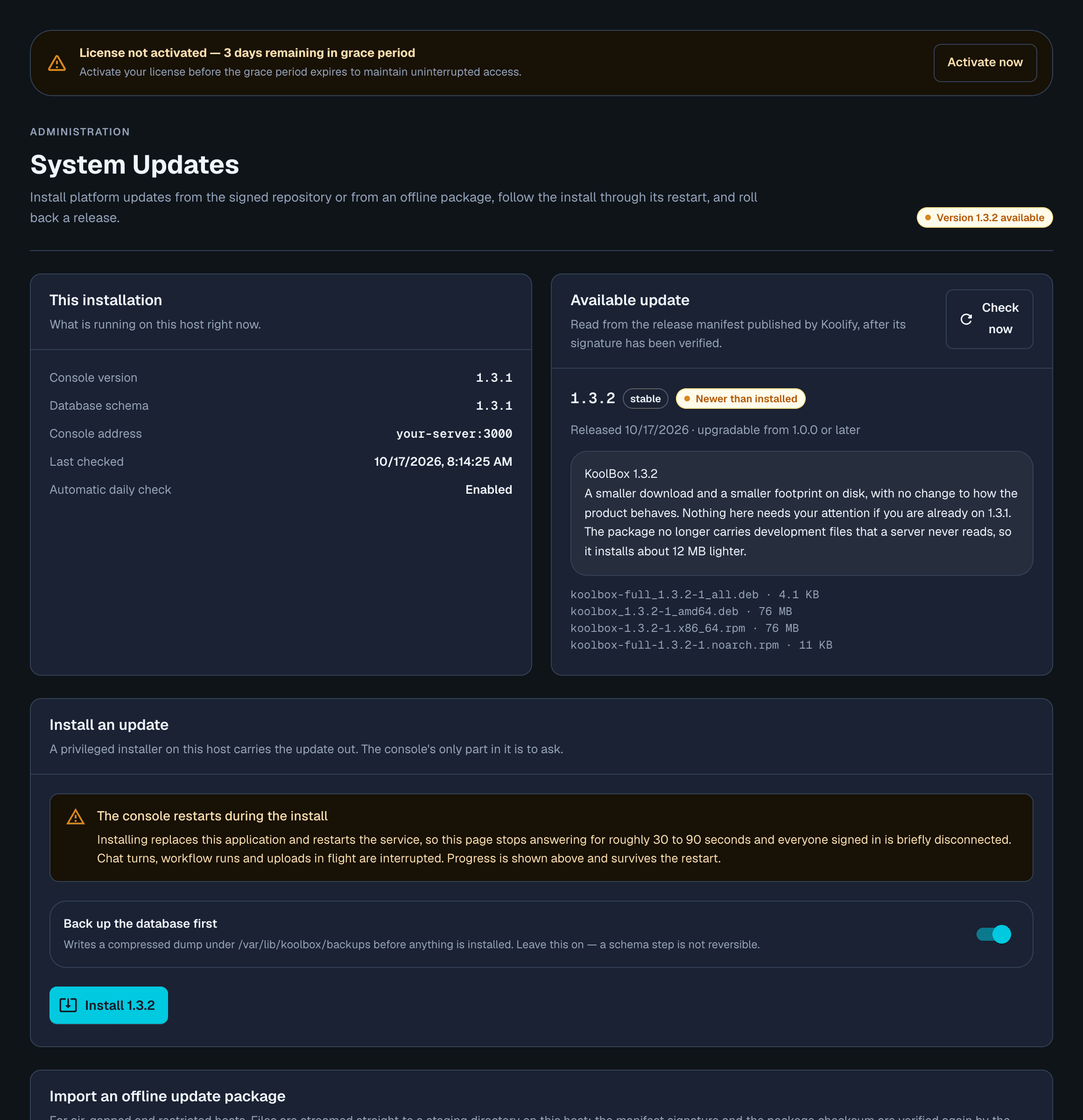
The Install an update card describes the division of labor in one line — “A privileged installer on this host carries the update out. The console's only part in it is to ask.” — which is exactly how it works, and why the console can update a package it has no privilege to install. Before it starts, it tells you plainly what an update costs:
Installing replaces this application and restarts the service, so this page stops
answering for roughly 30 to 90 seconds and everyone signed in is briefly disconnected.
Chat turns, workflow runs and uploads in flight are interrupted. Progress is shown
above and survives the restart.
That estimate is conservative: every apply measured here, from the console and from the command line, finished in 17 to 25 seconds.
Back up the database first is a live switch, on by default, and the page makes its own case for it: “Writes a compressed dump under /var/lib/koolbox/backups before anything is installed. Leave this on — a schema step is not reversible.”
The command line behaves differently and is worth knowing: there, --yes skips the confirmation question only, and the backup happens regardless. From this page it is a choice, and the only good answer is the default.
Applying shows a seven-step checklist — queued, pre-flight checks, database backup, verifying the package signature, installing packages, applying schema migrations, health check — with a live elapsed timer. The page then survives the console restarting underneath it, which is the part most worth seeing:
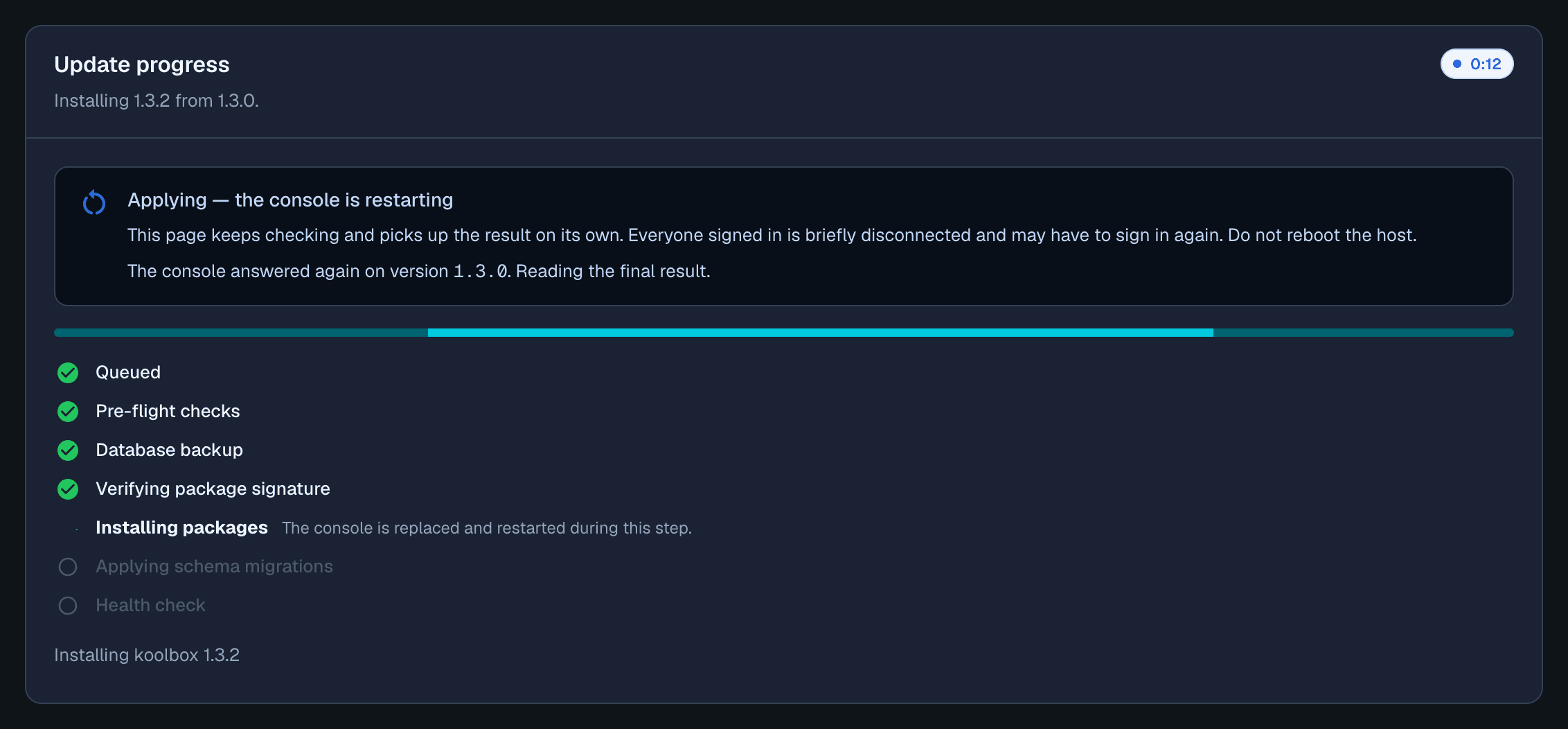
Applying — the console is restarting
This page keeps checking and picks up the result on its own. Everyone signed in is
briefly disconnected and may have to sign in again. Do not reboot the host.
It reflects work done elsewhere, too: a koolboxctl rollback run over SSH appeared live in the same progress card and in Update history, which records the action, whether it was online or offline, the versions it moved between, the outcome, and who asked — an administrator's email for console runs, a dash for anything done with koolboxctl.
sudo koolboxctl status or the Update history list rather than acting on the card — and take the page's advice not to reboot the host.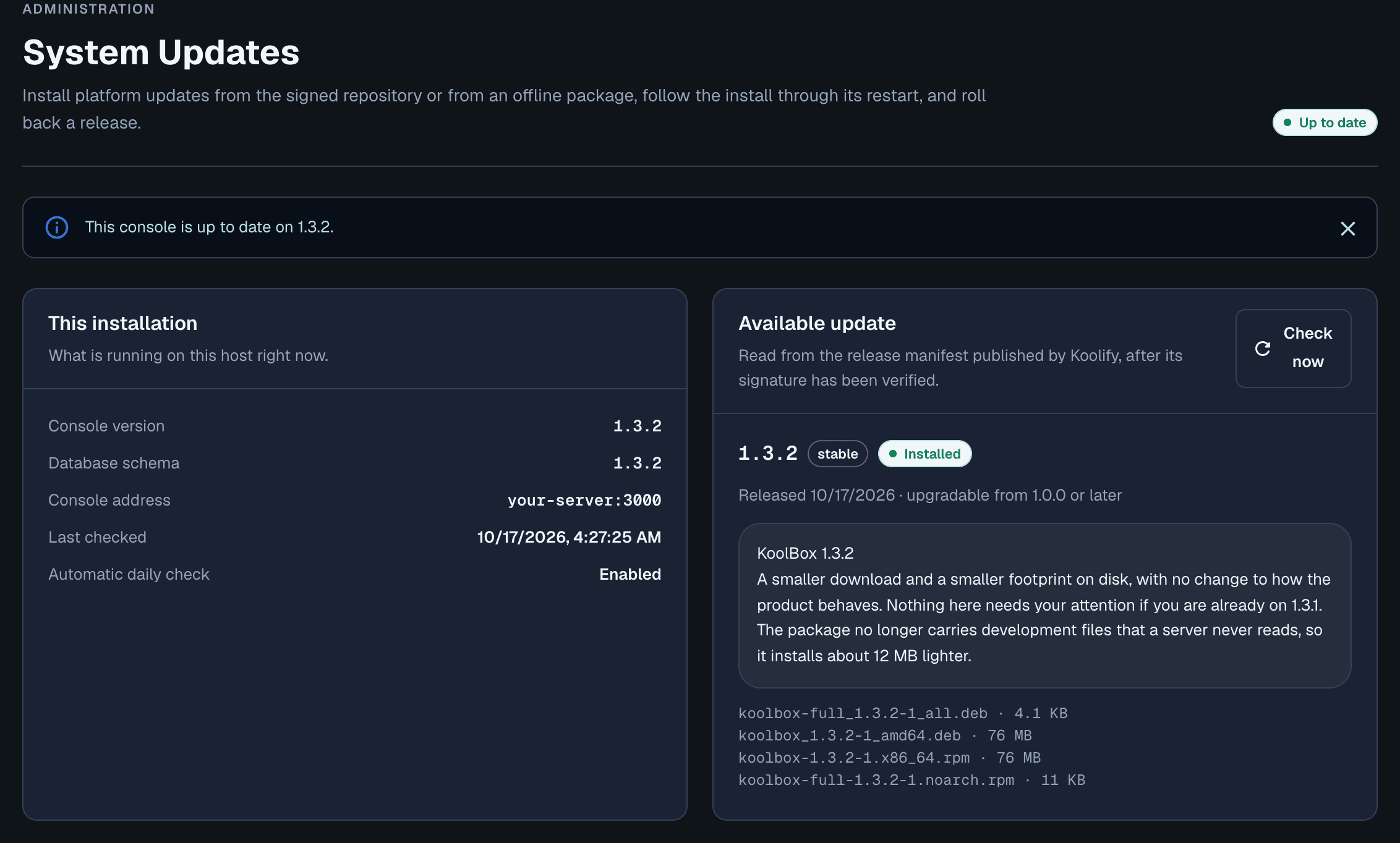
These four captures were taken across several releases as they shipped during verification, so the version numbers differ from one to the next — they are separate moments, not one continuous session.
How you find out an update exists
The console checks once a day on its own and raises a notification for administrators. Both halves of that are worth understanding, because neither works the way the words usually imply.
The daily check is not a cron job or a systemd timer. There is no KoolBox timer and no entry in /etc/cron.d. The console runs its own scheduler on a one-minute tick — Scheduler started (1-minute tick…) in the log — and that tick does nothing at all until 24 hours have passed since the last check. The state lives in a database row, not a file, which is why it survives restarts and upgrades. If the console is not running, no check happens.
koolbox-updater.path and koolbox-updater.service are not schedulers — they are the privilege boundary, and they are the reason a web console can install a system package without being able to install a system package. The console runs unprivileged with NoNewPrivileges=true, so it cannot carry out an update and no sudoers rule could let it. Instead it writes a request file, and a root-owned path unit picks that up and runs the privileged updater. The unit file puts it better than we can: the console's only privilege is to ask.
The updater then re-executes itself as a transient unit, so the work survives the package transaction replacing the updater's own files mid-flight.
Update available: KoolBox 1.3.1 or Update to KoolBox 1.3.2 completed, each linking to the Updates page. There is no mail configuration anywhere in the product, so do not plan around email alerts. And do not treat silence as “no update”: visit the page, or run koolboxctl update --check from a monitoring script, which is the reliable way to know.Update from the terminal, guided
koolboxctl update answers ✗ Unknown command: update, which is the whole reason the upgrade to 1.3.0 has to be done with your package manager. Once you are there, this is the most convenient way to update.sudo koolboxctl update # guided: check, show the notes, confirm, apply, verify
koolboxctl update --check # just report; needs no sudo
sudo koolboxctl update --to 1.3.1 --yes # a named version, no questions
sudo koolboxctl update --offline <dir> # from staged files, no network
sudo koolboxctl rollback [--to X.Y.Z] # go backThe guided form shows you what it is about to do and why, then asks once. It is the whole interaction:
KoolBox update
  Installed version : 1.3.0
  Available version : 1.3.2 (stable channel)
  Released          : 2026-10-17T07:55:32Z

Release notes
  KoolBox 1.3.2

  A smaller download and a smaller footprint on disk, with no change to how the
  product behaves. Nothing here needs your attention if you are already on 1.3.1.

  The package no longer carries development files that a server never reads, so
  it installs about 12 MB lighter.

What will happen
  1. A database backup is taken (always, even with --yes).
  2. koolbox 1.3.2 is installed from the signed repository.
  3. The service restarts and applies its schema upgrade steps.
  4. Readiness is confirmed against http://127.0.0.1:3000/api/health.

! The console restarts. Signed-in users are briefly disconnected.

Update 1.3.0 → 1.3.2 now? [y/N] y

KoolBox update 1.3.0 → 1.3.2 (apply-online, online)
Checking this host is ready to update
✓ Preflight passed (1.3.0 → 1.3.2, online).
Backing up the database before updating
✓ Backup written: /var/lib/koolbox/backups/koolbox-1.3.0-20261017-102604.sql.gz
Installing koolbox 1.3.2
✓ Packages installed.
Applying schema upgrades and restarting the console
Waiting for the console to report 1.3.2
✓ Console is serving 1.3.2 (schema 1.3.2).
✓ KoolBox updated to 1.3.2.
  Phase       : completed
  Message     : Updated to 1.3.2
  Backup      : /var/lib/koolbox/backups/koolbox-1.3.0-20261017-102604.sql.gz
  Log         : /var/log/koolbox/update-cbc44baa-a366-4d6f-8675-f15c0f4b64f0.log
22 seconds, and the backup is not conditional — it happens even with --yes, which skips the question and nothing else. The prompt accepts y and treats everything else as no, without re-asking:
Update 1.3.0 → 1.3.2 now? [y/N] maybe
Aborted.
--to X.Y.Z installs the version you name even when a newer one is advertised, which is what you want when you are standardizing a fleet on a release you have tested. Each run leaves a log under /var/log/koolbox/.
Checking from a script
koolboxctl update --check needs no root, prints the installed version, the available version and the release notes, and exits with a status you can act on. Exit 0 means “installed matches the newest published release” and nothing more:
Scroll to see all columns →
| Exit code | Meaning |
|---|---|
0 | Up to date — installed version equals the published version |
10 | An update is available |
1 | Could not check — no route to the manifest |
A check can never hang: each manifest download is bounded by KOOLBOX_UPDATE_TIMEOUT, 20 seconds by default. In practice a blocked host does not wait that long at all — the connection is refused immediately and the command came back in 0.03 seconds, telling you what to do next rather than just failing:
Installed version : 1.3.0
✗ Could not fetch the update manifest from https://packages.koolify.ai/updates/latest.json
  This host may be offline or air-gapped. For an offline update use:
sudo koolboxctl update --offline /path/to/packageskoolboxctl update --check returns 10; dnf check-update returns 100. Both were measured. A script written against one will misread the other.Update an isolated server
From 1.3.0 this is one command with a verified trust chain, and it is the route to use. The older package-manager route still works and is covered at the end.
On a connected machine, collect four files into one directory: the two packages for your distribution, the signed release manifest, and its signature.
# Debian / Ubuntu — no sudo needed
apt-get download koolbox koolbox-full

# RHEL family — needs root
sudo dnf download --resolve koolbox-1.3.2 koolbox-full-1.3.2

curl -fLO https://packages.koolify.ai/updates/latest.json
curl -fLO https://packages.koolify.ai/updates/latest.json.sig
Take the version from the manifest and fetch packages that match it. A manifest and a package from different releases will fail verification — which is the point of the verification, but it is an avoidable afternoon.
Transfer the directory to the isolated server.
Apply it:
sudo koolboxctl update --offline /path/to/dir
It lists what it found, verifies the manifest signature against a public key shipped inside the product, checks every package against the manifest, and only then installs. Measured end to end with the host's route to Koolify genuinely blocked, 17 to 19 seconds:
KoolBox offline update
  Installed version : 1.3.0
  Package version   : 1.3.2
  Staged in         : /var/lib/koolbox/update/staged/0dab11fa-2850-48f0-8059-7d426086a037
  Backup            : yes — taken before anything is installed
    koolbox-full_1.3.2-1_all.deb
    koolbox_1.3.2-1_amd64.deb
    latest.json
    latest.json.sig

! The console restarts. Signed-in users are briefly disconnected.

KoolBox update 1.3.0 → 1.3.2 (apply-offline, offline)
Checking this host is ready to update
✓ Preflight passed (1.3.0 → 1.3.2, offline).
Backing up the database before updating
✓ Backup written: /var/lib/koolbox/backups/koolbox-1.3.0-20261017-131235.sql.gz
Verifying the staged packages
✓ Release manifest signature verified against update-signing-key.pub.pem.
✓ Verified 2 package(s) against the signed manifest.
Installing koolbox 1.3.2
✓ Packages installed.
Applying schema upgrades and restarting the console
Waiting for the console to report 1.3.2
✓ Console is serving 1.3.2 (schema 1.3.2).
✓ Update applied.koolboxctl --help describes them as “with latest.json + latest.json.sig if you have them”, which reads as a convenience. It is not: without them the update refuses to proceed. Stage all four files.# packages only
✗ The staged update has no release manifest (latest.json) — upload the manifest and its signature.
# manifest, no signature
✗ The staged release manifest has no detached signature (latest.json.sig).
# manifest altered by one byte, genuine signature
✗ The update manifest signature is not valid — refusing to act on it.
Checked against /opt/koolbox/share/update-signing-key.pub.pem.
# genuine manifest and signature, package truncated by one byte
✓ Release manifest signature verified against update-signing-key.pub.pem.
✗ koolbox_1.3.2-1_amd64.deb does not match the checksum in the signed release manifest — the update was not applied.A tampered manifest is rejected before anything happens at all — the signature is checked in the command itself, before the backup — while a missing manifest is discovered after it. Which means a failed offline attempt can still leave a database dump behind, and dumps rotate: five are kept, so several failed attempts in a row can push out a backup you wanted. Worth knowing before you experiment on a production server.
/var/lib/koolbox/update/staged/<uuid>/ and nothing ever removes them — including abandoned and failed batches. One afternoon of testing left 27 directories and 1.7 GB there. On an appliance-sized disk that matters: check the directory after a round of offline work and delete the batches you no longer need.Uploading an update through the console
The same thing can be done from Administration → Updates, by uploading those four files into the Import an offline update package card. Each file is listed as it arrives with its byte count and SHA-256, the manifest is read and summarized, and the batch is verified as a whole before Install staged package becomes available.
Over plain http://your-server:3000 — which is exactly what the installer banner tells administrators to use — the card refuses to accept anything and says “This browser cannot generate a staging identifier. Use a current browser, or upload the package with koolboxctl.” The browser is not the problem: the card uses a function browsers only expose in a secure context, so it works over HTTPS or from localhost and nowhere else.
So either put the console behind HTTPS before you rely on this screen, or use sudo koolboxctl update --offline, which has no such constraint. On an air-gapped server the command line is the dependable route.
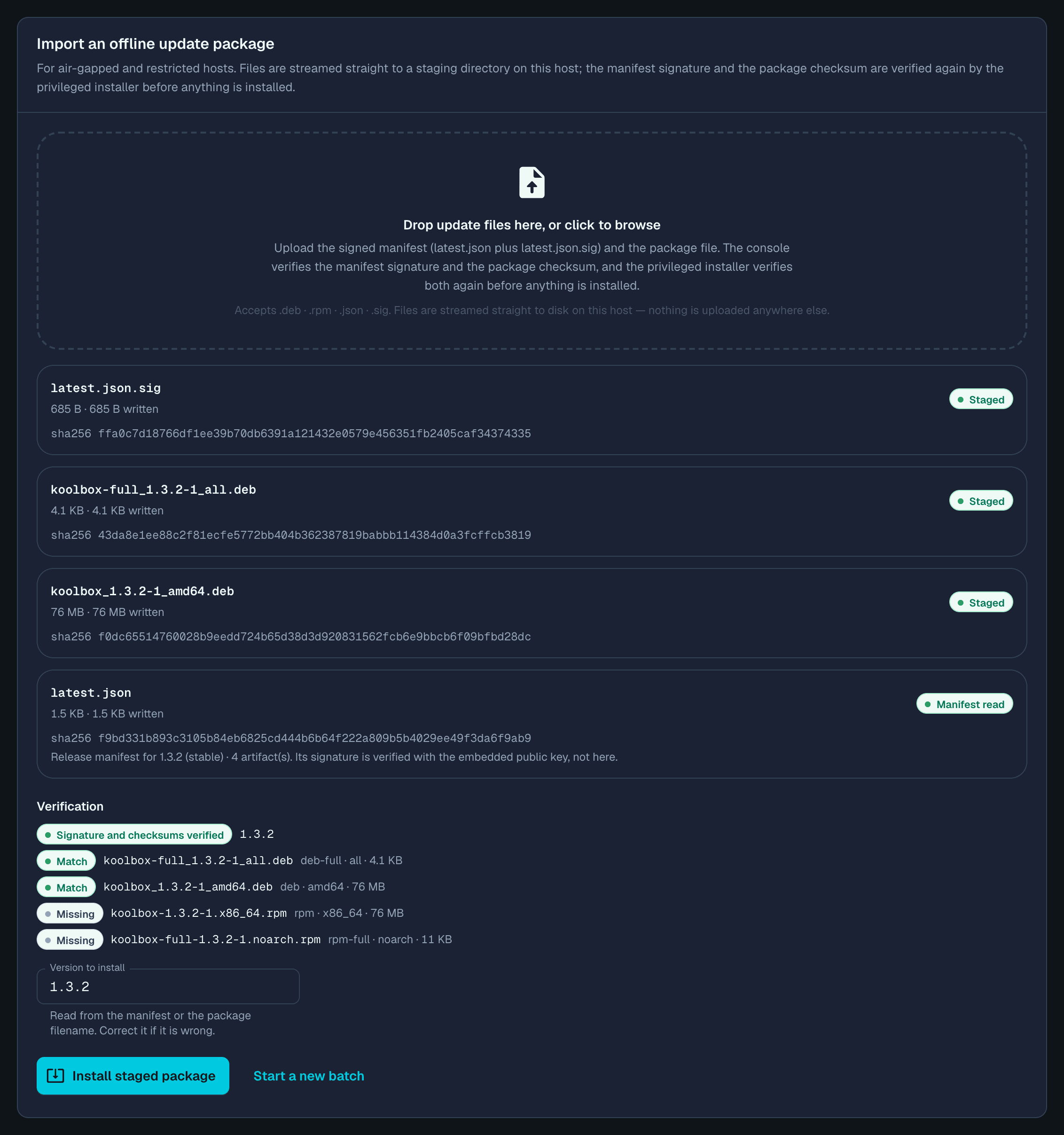
Missing alongside two reading Match is a complete batch for your distribution, and it does not block the install.An incomplete batch is accepted and held rather than rejected: the package is staged with its checksum shown and the version to install already filled in, while the install button stays disabled and the card tells you precisely what is missing — Incomplete — keep uploading. Upload the signed release manifest (latest.json) and its signature (latest.json.sig). or, once the manifest is there, Incomplete — keep uploading. Upload the manifest signature (latest.json.sig). A corrupted package instead reports Verification failed and names the file to delete and upload again.
The package-manager route
Still available, and the only option before 1.3.0: carry the two packages across and install them locally, exactly as in Method D.
# Debian / Ubuntu — silent, 16 to 18 seconds
sudo apt-get install -y ./koolbox_*.deb ./koolbox-full_*.deb

# RHEL family — --disablerepo is required when the repository is unreachable
sudo dnf install --disablerepo=koolbox ./koolbox-*.rpm ./koolbox-full-*.rpm
This verifies the packages' own distribution signatures but not the release manifest, and it takes no database backup. Everything else behaves as a normal update: configuration preserved, schema applied on restart, confirm with sudo koolboxctl status. An offline license needs no attention during an update.
Hands-off automatic updates
The product is an ordinary repository package, so your distribution's own unattended-update mechanism can keep it current.
Ubuntu and Debian
sudo apt install -y unattended-upgrades
sudo tee /etc/apt/apt.conf.d/52koolbox-unattended >/dev/null <<'EOF'
Unattended-Upgrade::Allowed-Origins { "Koolify Inc:stable"; };
EOF
sudo unattended-upgrade --dry-run --debug
Run the dry run before relying on it. On a koolbox-full server both packages must move together, and unattended-upgrades holds back anything that would need extra installations.
RHEL family
sudo dnf install -y dnf-automatic
sudo nano /etc/dnf/automatic.conf        # set apply_updates = yes
sudo systemctl enable --now dnf-automatic.timerAn update restarts the service, so there is a brief outage at whatever hour the timer fires — 17 to 25 seconds in every run measured here, but at an hour nobody is watching.
Your distribution's unattended mechanism takes no database backup, because it is just the package manager. Pair it with the nightly backup below, or leave updates to koolboxctl update, which always takes one.
Unlike the rest of this page, neither of these two mechanisms was exercised during verification; they are your distribution's, not KoolBox's, and the package is an ordinary one. Run the dry run.
Backups
Take one before any significant change. It takes well under a second.
sudo koolboxctl backupThe file is written to /var/lib/koolbox/backups/ with the version and timestamp in its name. The five newest are kept and older ones are removed automatically — verified: taking a sixth backup pruned the oldest. Set KOOLBOX_BACKUP_KEEP in the environment to keep a different number, and bear in mind that a failed offline update writes a dump too, so it consumes one of the five.
To write one somewhere else — a mounted network share, for example — name the path. Both forms print where they wrote and how big it was:
sudo koolboxctl backup /mnt/nas/koolbox-nightly.sql.gz$ sudo koolboxctl backup
Backing up koolbox → /var/lib/koolbox/backups/koolbox-1.3.2-20261017-152154.sql.gz
✓ Backup written: /var/lib/koolbox/backups/koolbox-1.3.2-20261017-152154.sql.gz (16K)
$ sudo koolboxctl backup /tmp/koolbox-custom-path.sql.gz
Backing up koolbox → /tmp/koolbox-custom-path.sql.gz
✓ Backup written: /tmp/koolbox-custom-path.sql.gz (16K)A nightly backup is a reasonable addition to your crontab:
15 2 * * * /usr/bin/koolboxctl backup >/dev/null 2>&1Restoring one, and the two surprises in it
A restore replaces the entire contents of the database — knowledge bases, chat history, workflows, users and audit logs — and takes about eight seconds including the service restart.
sudo koolboxctl restore /var/lib/koolbox/backups/koolbox-1.3.2-20261017-152154.sql.gz! This replaces the ENTIRE contents of database 'koolbox' on localhost.
! All current knowledge bases, chat history, workflows, users, and audit logs will be overwritten.
Type the database name to confirm: koolbox
Stopping koolbox.service...
Restoring from /var/lib/koolbox/backups/koolbox-1.3.2-20261017-152154.sql.gz...
set_config
------------
(1 row)
ERROR: must be owner of extension unaccent
ERROR: must be owner of extension pg_trgm
ERROR: must be owner of extension pg_trgm
ERROR: must be owner of extension unaccent
✓ Restore completed.
Waiting for the service to become ready (up to 120s)...
✓ Service is ready (version 1.3.2, schema 1.3.2).Two things about that prompt. It wants the database name, normally koolbox — the obvious answer is rejected, which is the right outcome but not the one most people expect:
Type the database name to confirm: yes
✗ Confirmation did not match — aborted.
That exits 1 and changes nothing. And restore <file> --yes skips the question altogether, which is what a scripted restore needs. Both behaviors were re-measured on 1.3.2, so neither is a quirk of an older release.
koolbox account, which does not own the unaccent and pg_trgm extensions, so PostgreSQL refuses those two statements and carries on with everything else. A dump containing psql meta-commands is refused outright for the same reason — it is deliberate hardening, not a failed restore. The ✓ Restore completed. after them is the line that matters, and the service restarts on its own. The small set_config table above them is just the dump's opening statement echoing its result.ChangeMe123!, confirmed by testing it after a restore. Change it again immediately, and re-enrol 2FA, before anything else.The identifier the fingerprint is built from lives in the database and is created lazily, the first time the License page needs it. Restore a backup taken before that happened and the application mints a new one — so the fingerprint changes on identical hardware, and a license bound to the old one stops matching. Measured before and after a restore, with nothing about the machine touched:
Scroll to see all columns →
| Before the restore | After the restore | |
|---|---|---|
machineFingerprint | KB-7B6F-9ECF-1EB9-2F58-7FAD | KB-8D7C-74A7-6971-79C2-0F98 |
installId | 70594920-6637-407a-b368-dc034a36d625 | 17779af9-2ae8-4b2b-9931-71c729261cdc |
| All seven host components | unchanged | unchanged |
So check Administration → License after any restore. If the fingerprint has changed, an online license re-binds when you activate again with the same code; an offline license needs a fresh fingerprint file sent to Koolify and a replacement file uploaded, which makes this worth planning for on an air-gapped deployment rather than discovering afterwards.
Going back to an earlier version
The five newest releases stay available, so you can return to any of them. From 1.3.0 there is a command for it, and it is the one to use — it takes a backup first, tells you what it will and will not undo, and verifies the console afterwards:
sudo koolboxctl rollback               # the version you were on before the last update
sudo koolboxctl rollback --to 1.3.0    # a specific release
sudo koolboxctl rollback --to 1.3.0 --yes
With no --to it works out where you came from — No --to given; using 1.3.0, from the newest pre-upgrade backup. — and then puts the question in front of you properly:
KoolBox rollback
  Installed version : 1.3.2
  Rolling back to   : 1.3.0
  Backup            : yes — taken before anything is installed

! A rollback installs the older package. It does NOT restore the database.
! An older release may not understand a schema a newer one upgraded; if the
! console fails to start, restore the pre-upgrade dump as well.

  Newest backup: /var/lib/koolbox/backups/koolbox-1.3.0-20261017-102604.sql.gz
  Restore it with: sudo koolboxctl restore /var/lib/koolbox/backups/koolbox-1.3.0-20261017-102604.sql.gz
! The console restarts. Signed-in users are briefly disconnected.

Roll back 1.3.2 → 1.3.0 now? [y/N] y

KoolBox update 1.3.2 → 1.3.0 (rollback, online)
Checking this host is ready to update
✓ Preflight passed (1.3.2 → 1.3.0, online).
Backing up the database before updating
✓ Backup written: /var/lib/koolbox/backups/koolbox-1.3.2-20261017-102800.sql.gz
Installing koolbox 1.3.0
✓ Packages installed.
Applying schema upgrades and restarting the console
Waiting for the console to report 1.3.0
✓ Console is serving 1.3.0 (schema 1.3.2).
✓ KoolBox rolled back to 1.3.0.
  Phase       : rolled-back
  Message     : Rolled back to 1.3.0
Eight rollbacks were run during verification, all successful, 20 to 21 seconds each. A no-op is handled gracefully (✓ KoolBox is already at 1.3.0 — nothing to do.), and a rollback immediately after an update tends to work even with no route to the repository, because the older package is still in your package manager's cache — useful, but not something to rely on.
✓ Console is serving 1.2.8 (schema 1.3.2). and koolboxctl version then reported the two different numbers quite happily. Verify the areas you care about rather than assuming either outcome.Rolled back to KoolBox 1.3.0 followed by “The update did not complete.” and a log path. That is a product bug, not a sign that anything went wrong. Trust sudo koolboxctl status and the Update history list, which both report it correctly.Without koolboxctl rollback
On 1.2.x, or if you prefer the package manager, name both packages at the version you want:
# Debian / Ubuntu — see what is available, then install it
apt-cache madison koolbox
sudo apt install koolbox=1.3.0-1 koolbox-full=1.3.0-1

# RHEL family
dnf --showduplicates list koolbox
sudo dnf downgrade koolbox koolbox-full
The -1 package revision is part of the version string on Debian and Ubuntu, and is required. This route takes no backup and gives you no pre-flight checks, which is the argument for the command above.
Afterwards the health report legitimately shows two different versions — the running code is older than the schema it is reading:
$ koolboxctl version
koolbox 1.3.0
bundled node v22.23.3
database schema 1.3.2sudo koolboxctl restore /var/lib/koolbox/backups/<the-backup-from-before>.sql.gzWhat to do next
- Troubleshooting and command referenceWhat to do when an update is interrupted, the console update never starts, or the service will not come back.
- Activate your licenseOnline activation, the offline two-file exchange, and why an offline license must be replaced before it expires.
- Install KoolBoxRequirements, all four install methods, first sign-in, and putting the console behind HTTPS.
- Guides and documentationStep-by-step guides for knowledge bases, RAG pipelines, workflows and AI agents.
- Ask KoolifyPlanning an upgrade window, or need a specific release for an isolated environment? Get in touch.
Private AI You Can Keep Current.
Updates are ordinary package operations — on a connected server, and on one that has never seen the internet. See how KoolBox fits your environment.